
Make it yours
Flarebox does a lot: local Workers projects, deploys, most of a Cloudflare account, and post-quantum checks. Most people use part of it. Choose that part, and the rest leaves the sidebar, the Cloudflare menu and the command palette.
The first run
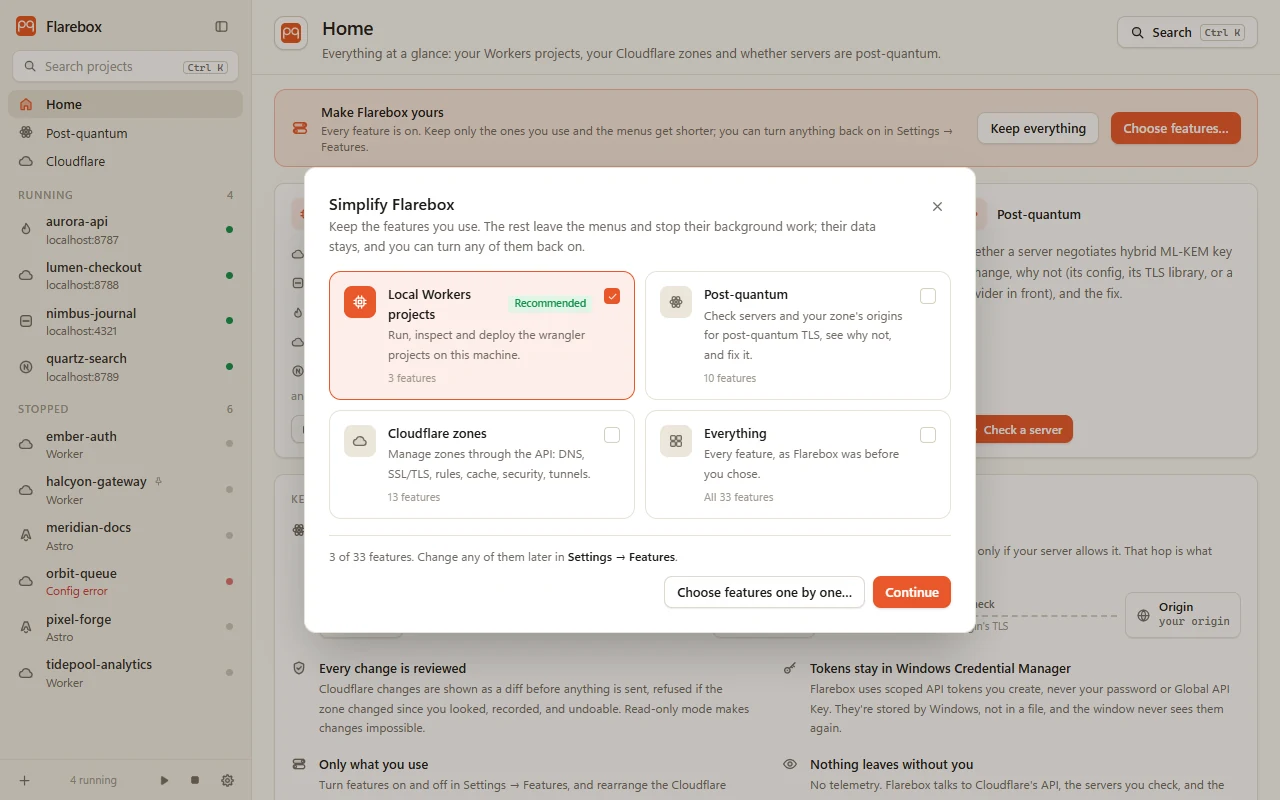
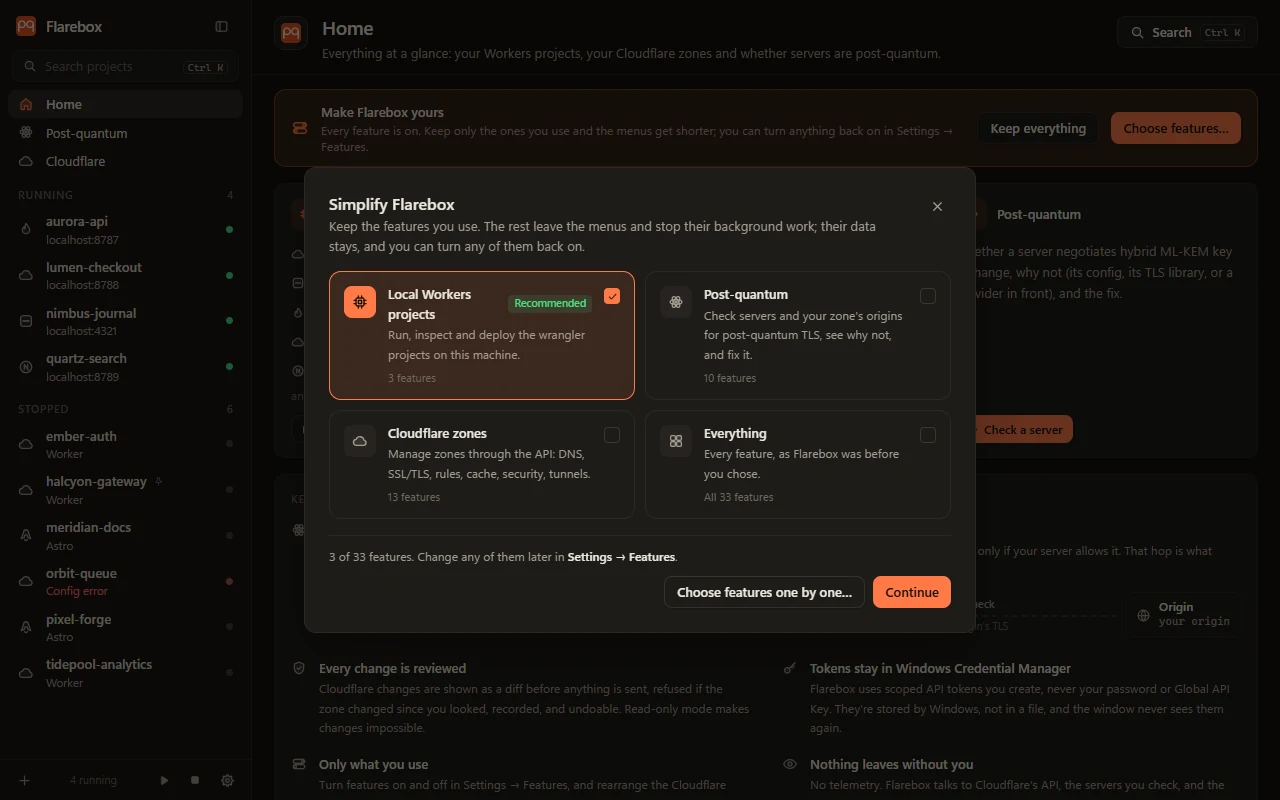
Section titled “The first run”A new install starts with one question: What will you use Flarebox for? Pick one or more presets. The ones marked Recommended come from what Flarebox found on your machine.
| Preset | What it turns on |
|---|---|
| Local Workers projects | Projects (list, overview, logs, settings), Explorer, Deploy |
| Post-quantum | The Post-quantum page, zone origins and their daily re-check, ML-DSA certificates, hosts a project calls, crypto in code, and the Cloudflare pages they rely on (Safety, SSL/TLS, Tunnels, History, Alerts) |
| Cloudflare zones | Safety, Overview, DNS, SSL/TLS, Cache, Rules, Security, Timeline, Workers, Tunnels, KV/D1/R2, History, Alerts |
| Everything | Every feature |
Presets combine: Local + Post-quantum is a common pair. Choose features one by one… opens the full list.
Updating from an earlier version
Section titled “Updating from an earlier version”Nothing changes on its own: every feature stays on. Home shows a one-time Make Flarebox yours prompt. Choose features… opens the same presets; Keep everything dismisses it for good.
Settings → Features
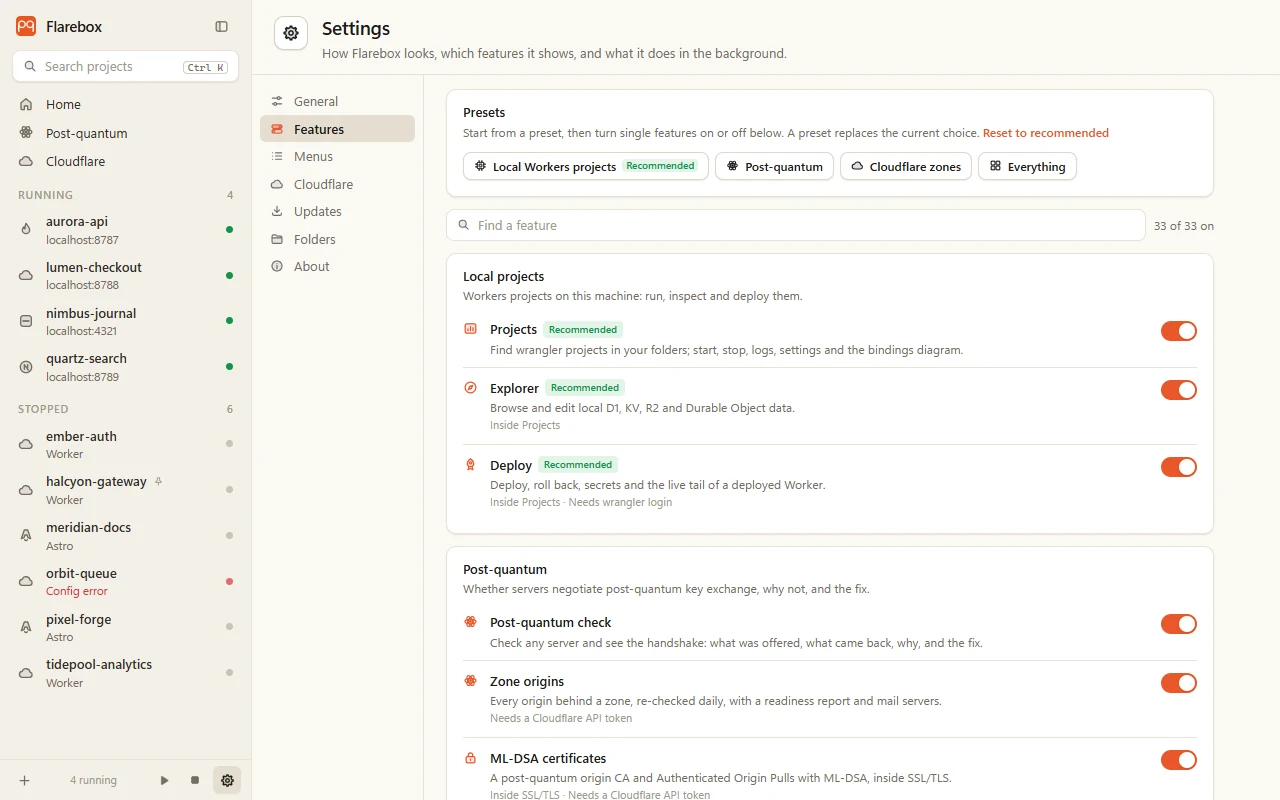
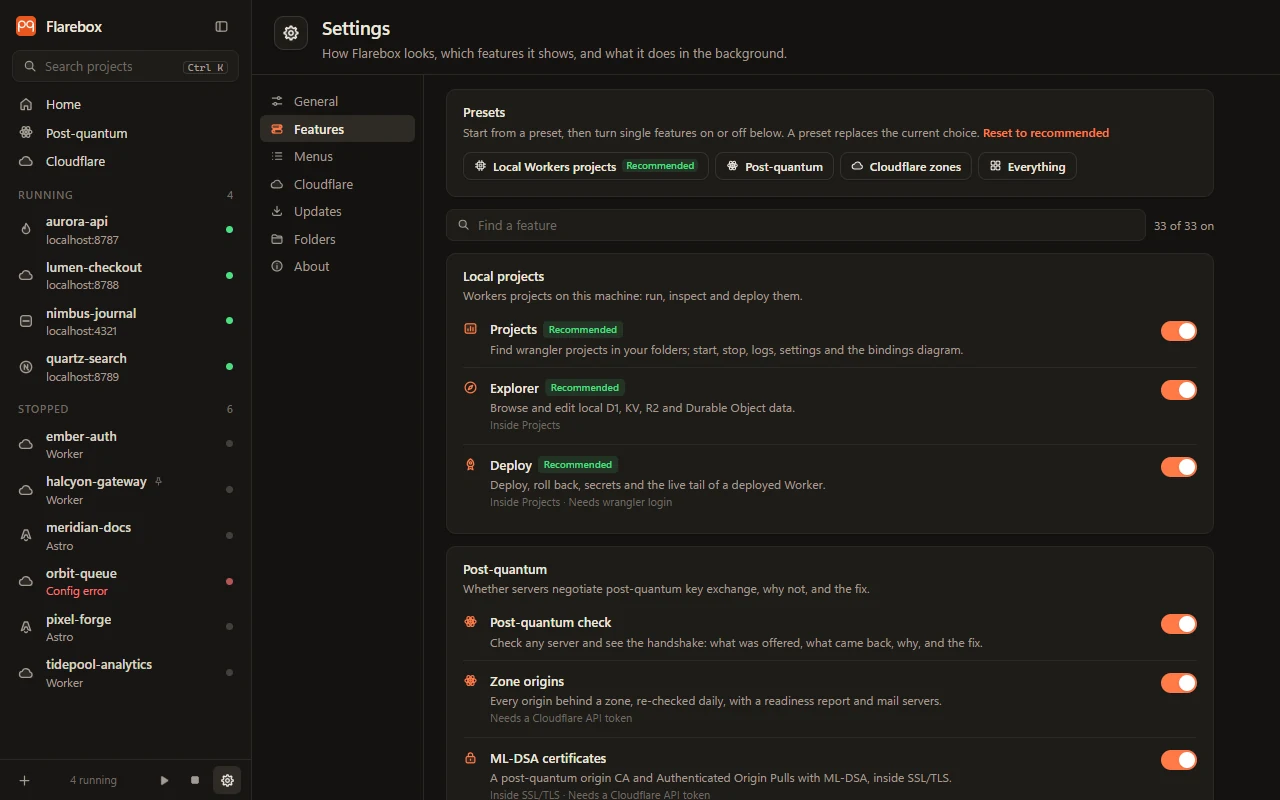
Section titled “Settings → Features”Every feature, in five groups: local projects, post-quantum, Cloudflare zone, Cloudflare account, and Flarebox itself. Each has a one-line description, a Recommended badge where it applies, and what it needs:
- Inside …: a feature that lives in another one. Explorer and Deploy are inside Projects; ML-DSA certificates are inside SSL/TLS; the post-quantum checks of a project’s hosts and the crypto scan are inside Deploy. Turning the outer one off turns these off too; turning one of these on turns its outer one on.
- Needs …: something from outside Flarebox: a Cloudflare API token,
wrangler login, or a paid add-on.
Presets at the top replace the current choice; Reset to recommended goes back to the suggestion. Search finds a feature by name or description.
What “off” means
Section titled “What “off” means”| When a feature is off | |
|---|---|
| Menus | It leaves the sidebar, the Cloudflare menu and the command palette (Ctrl+K) |
| Background work | It stops. The daily re-check of zone origins needs Zone origins; tray alerts need Alerts |
| Data | Kept. Histories, snapshots and reports stay on disk, so turning a feature back on loses nothing |
The choice is saved in flarebox.json as app.features. A file from before this setting has no list, which means everything is on.
The Cloudflare menu
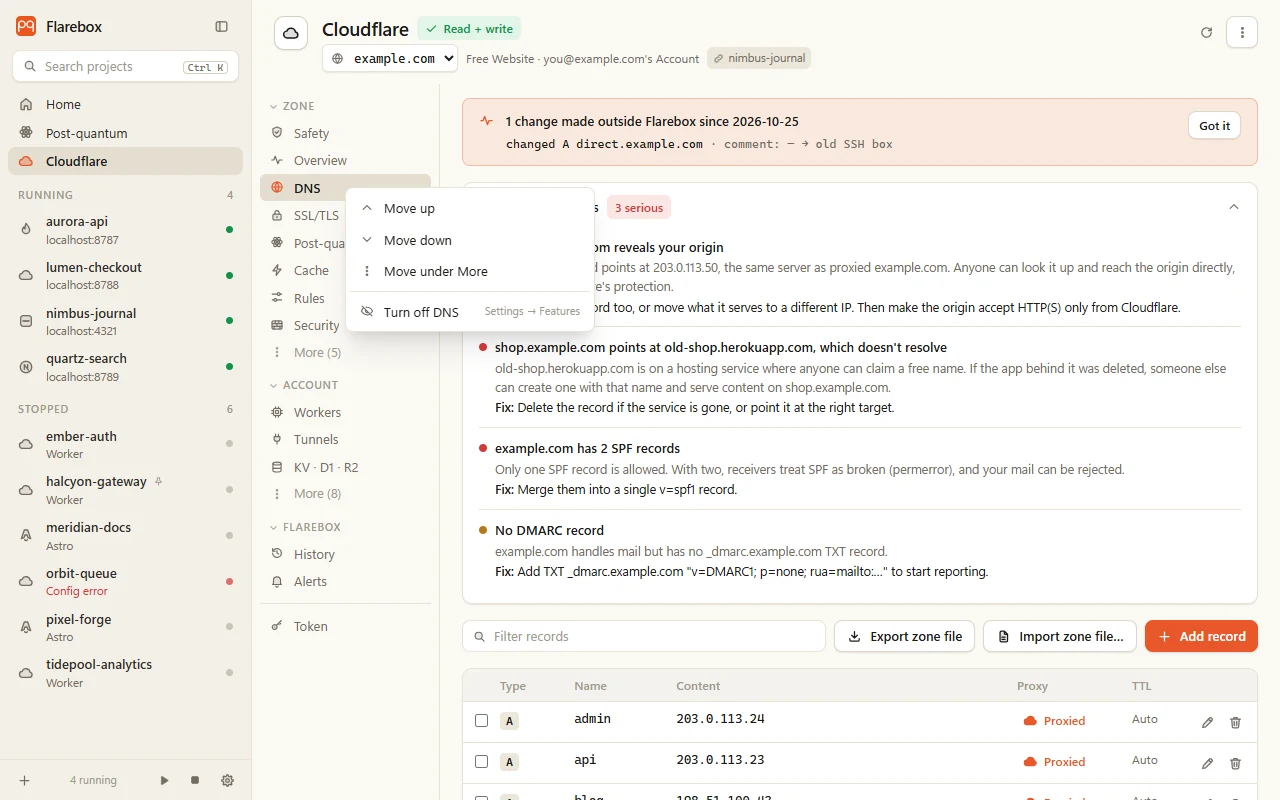
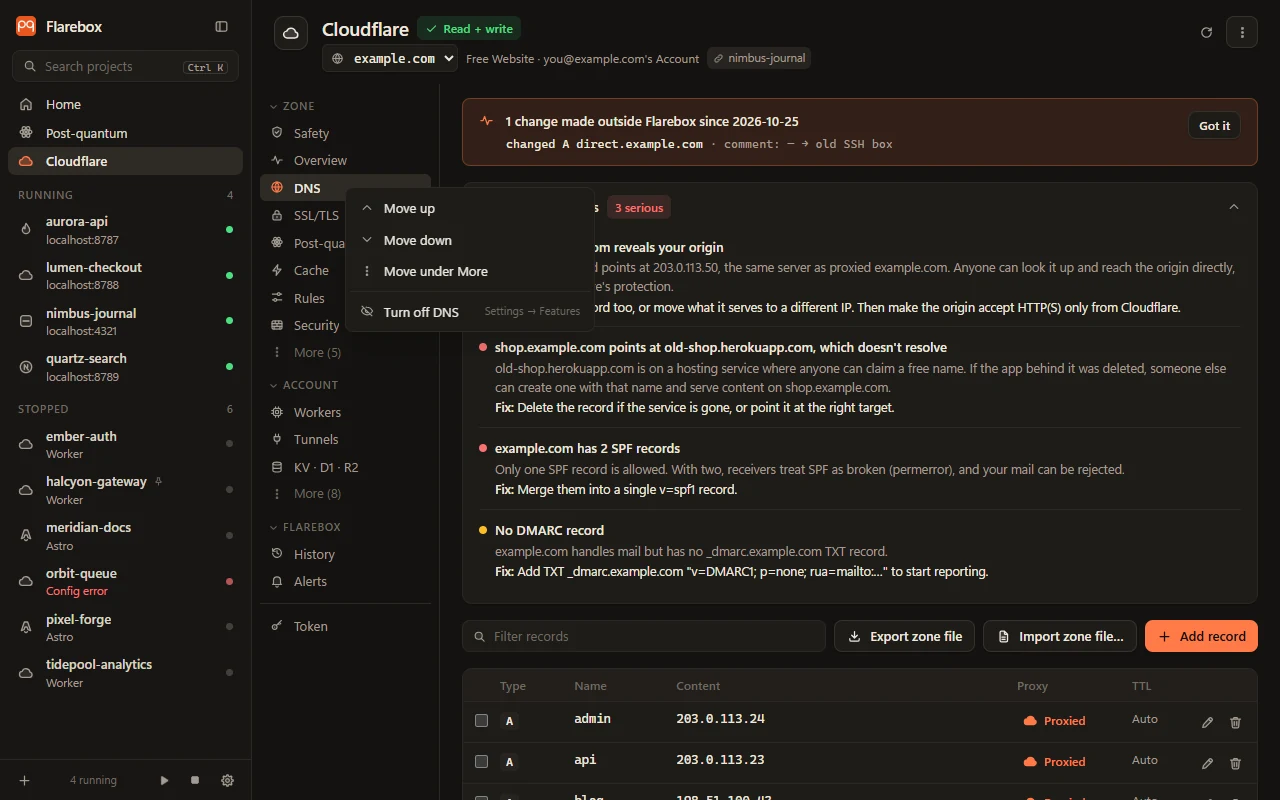
Section titled “The Cloudflare menu”The menu keeps the pages you use most in the main list and the rest under More, per group (Zone, Account, Flarebox). Groups fold away.
- Right-click an item: move it up or down, move it under More or back to the main list, or turn the feature off.
- Drag an item onto another to put it there.
- Settings → Menus shows the whole arrangement with the same controls, and Reset menu.
Density
Section titled “Density”Settings → General → Density. Compact (the default) fits more on screen; Comfortable gives page edges, headers, menu rows and sections more room. One switch changes every view.
Sections remember
Section titled “Sections remember”On a project’s Overview, Bindings, Traffic, Triggers and Details fold away with the arrow next to their name; on the Deploy tab, each card does. Flarebox remembers which are folded, on this machine.