
Tokens and permissions
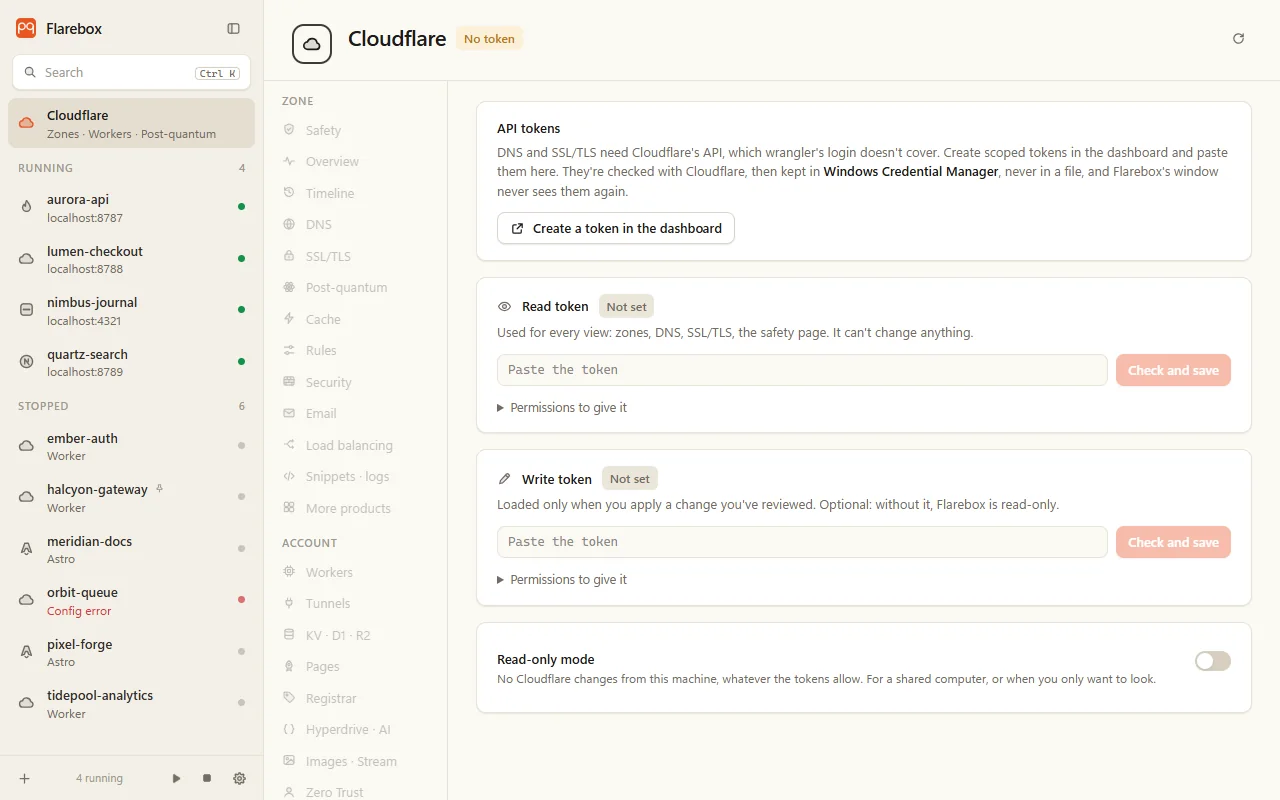
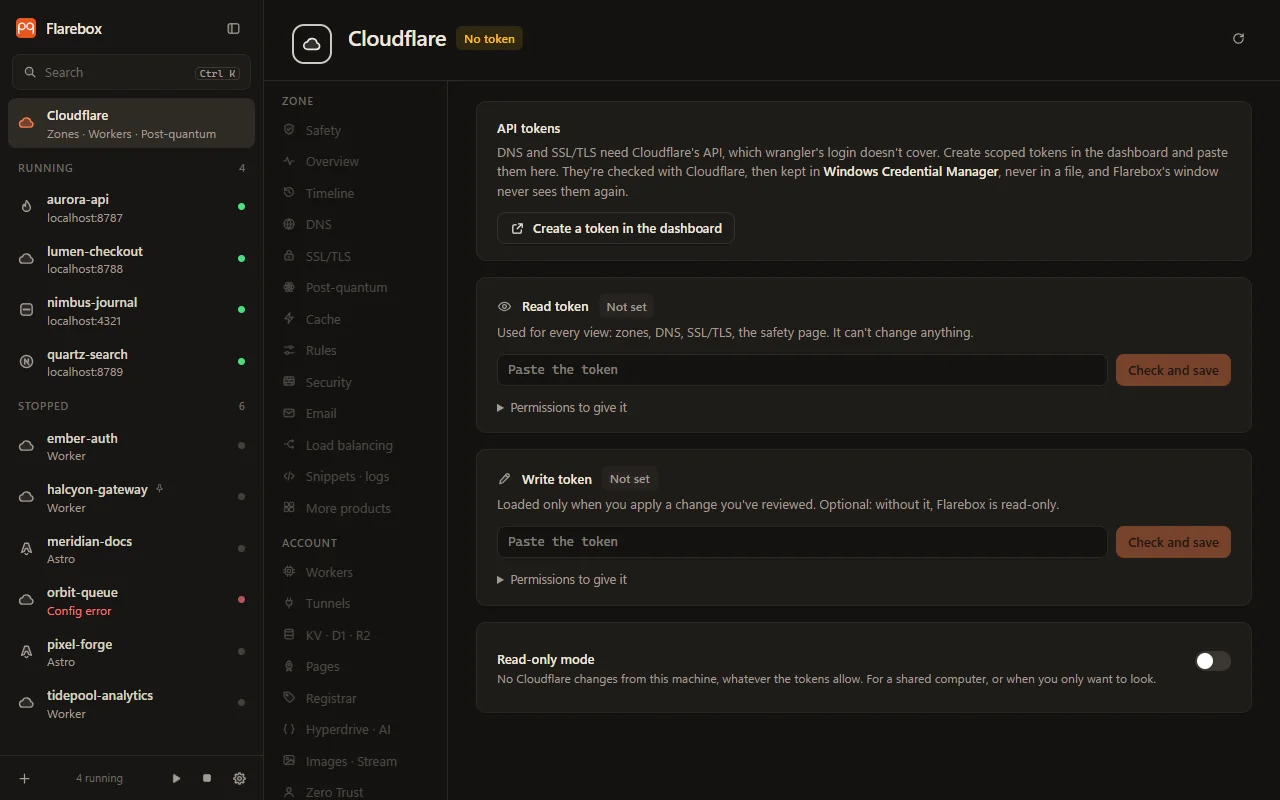
Workers features (dev, deploy, tail, secrets, rollback) use the project’s wrangler and your wrangler login. Everything under Cloudflare in the sidebar uses the Cloudflare API, which needs a token you create.
Two tokens
Section titled “Two tokens”| Read token | Write token | |
|---|---|---|
| Used for | Every view | Only a change you’ve reviewed and confirmed |
| Loaded | Whenever a view reads | From Credential Manager, inside that one change, then dropped |
| If it leaks | Someone can see your DNS and settings, but change nothing | Someone can change your zones |
| Required | Yes | No. Without it, Flarebox is read-only |
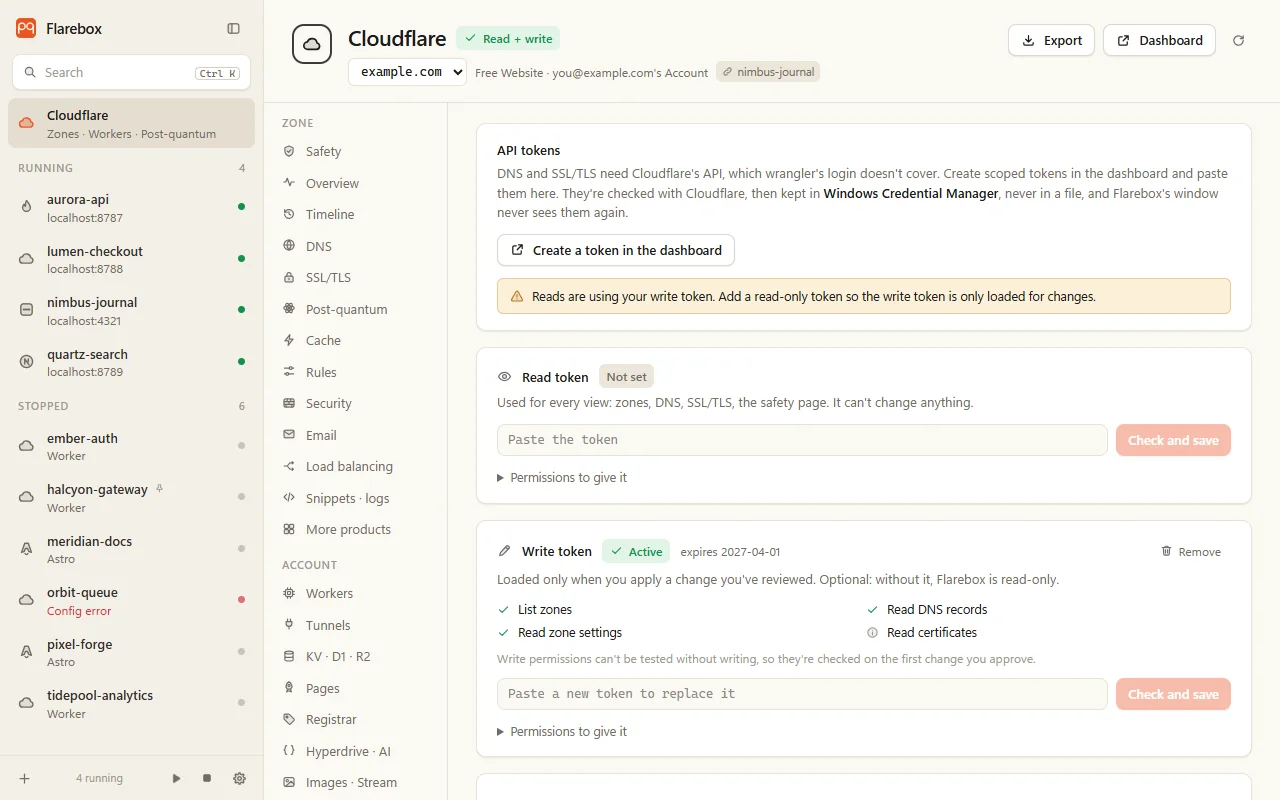
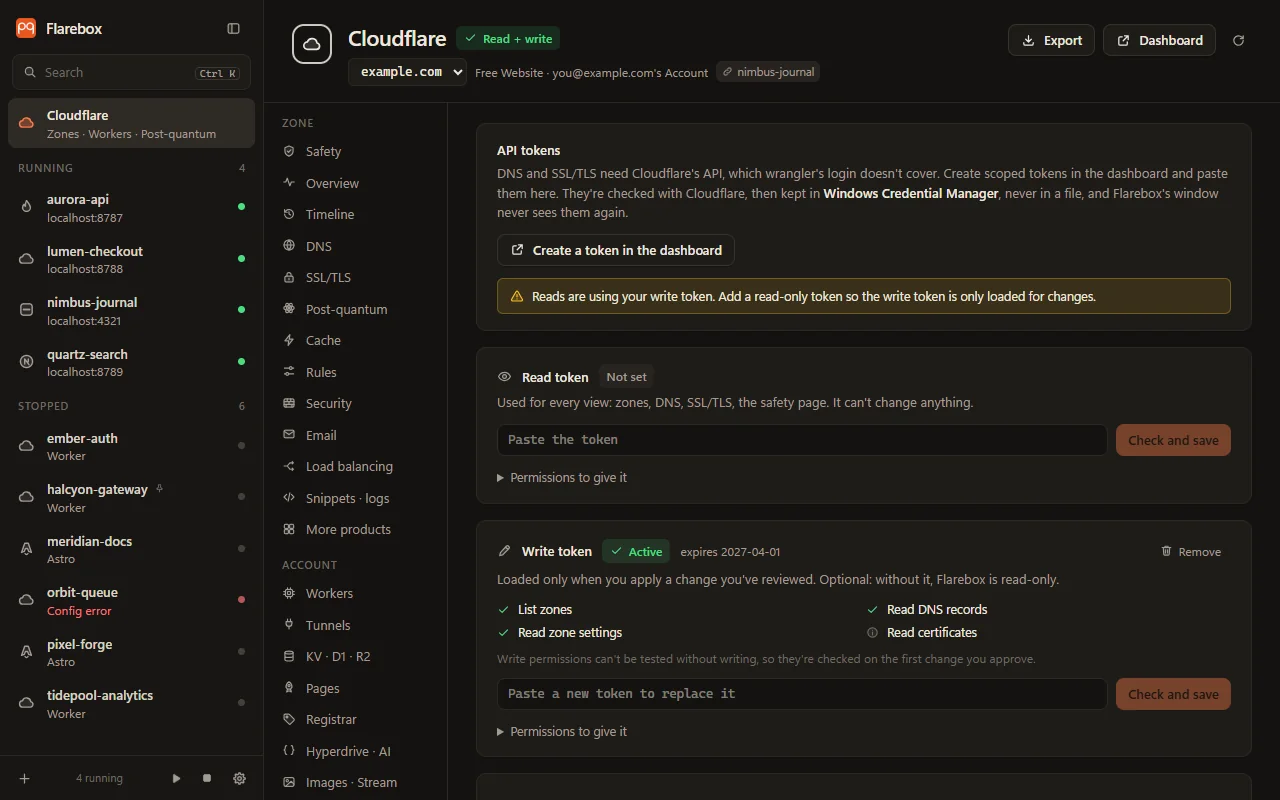
If you only store a write token, reads use it, and the Token tab says so (“Reads are using your write token”), so you can add a read-only one.
Create the read token
Section titled “Create the read token”- In Flarebox, open Cloudflare → Token and click Create a token in the dashboard. It opens My Profile → API Tokens in Cloudflare.
- Click Create Token → Create Custom Token.
- Name it, e.g.
Flarebox read. - Add the permissions from Read token below. At least: Zone → Zone → Read, Zone → DNS → Read, Zone → Zone Settings → Read, Zone → SSL and Certificates → Read.
- Under Zone Resources, include the zones you want to see (all zones, or specific ones).
- Optionally restrict Client IP Address Filtering to your own IP, and set an expiry.
- Create it, copy the token, paste it into Read token in Flarebox, and click Check and save.
Flarebox verifies it with Cloudflare before saving. Then it shows the token’s id, expiry and which reads work.
Create the write token (optional)
Section titled “Create the write token (optional)”The same steps, with the edit permissions for what you’ll change. It should also include the read permissions, so Flarebox can check its own changes after making them.
Read token
Section titled “Read token”As Cloudflare’s token editor names them. Add what you use; a view the token can’t read names the permission it’s missing.
- Zone → Zone, DNS, Zone Settings, SSL and Certificates → Read
- Zone → Analytics, Zone WAF, Transform Rules, Cache Rules, Single Redirect, Load Balancers, Email Routing Rules → Read
- Account → Account Settings, Account Analytics, Cloudflare Tunnel, Load Balancing: Monitors and Pools, Email Routing Addresses → Read
- Account → Cloudflare Pages, Hyperdrive, Vectorize, Workers AI, Cloudflare Images, Stream, Access: Apps and Policies, Zero Trust → Read (whichever you use)
- Account → Registrar → Read, for the Registrar tab and the tray’s expiry warning
- Zone → Workers Routes → Read and Account → Workers Scripts → Read, for the Timeline’s deploys and the Workers tab
- Account → Workers Observability → Edit, only for Workers Logs
Write token
Section titled “Write token”- Zone → DNS, Zone Settings → Edit
- Zone → SSL and Certificates → Edit (issuing or revoking Origin CA certificates)
- Zone → Cache Purge; Zone WAF, Transform Rules, Cache Rules, Single Redirect → Edit (for Cache and Rules)
- Account → Cloudflare Tunnel, Cloudflare Pages, Cloudflare Images, Stream → Edit (only what you’ll use)
- Plus the read permissions above
The full list by view is on Permissions by view.
Accepted tokens
Section titled “Accepted tokens”- User API tokens and account API tokens are accepted. Account tokens are verified against the account.
- Global API Keys are refused, with an explanation. They can do anything on the account, and Flarebox doesn’t need that.
Replacing or removing a token
Section titled “Replacing or removing a token”Paste a new token into the same slot to replace it, or click Remove. To revoke a token entirely, delete it in the Cloudflare dashboard.
Read-only mode
Section titled “Read-only mode”Token → Read-only mode blocks every change from this machine, whatever the tokens allow. It’s enforced in the app’s core, not just the window. Useful on a shared computer, or for a demo.
How the tokens are stored and sent is on Security model.