
Projects
Finding projects
Section titled “Finding projects”Flarebox looks for wrangler configs (wrangler.toml, wrangler.json or wrangler.jsonc) in two places:
- Watched folders (Add → Watch a folder…): every project underneath is listed. Flarebox re-scans when a config appears or changes, or when you run Rescan folders from the command palette.
- Pinned projects (Add → Pin one project…): one folder, anywhere.
For each project it detects the framework (Astro, Next.js / OpenNext, Hono, SvelteKit, EmDash and others), the package manager, and the wrangler version. Projects you don’t care about can be hidden from the project’s ⋯ menu (Hide project).
The sidebar groups projects under Running and Stopped. A project whose config doesn’t parse shows Config error.
Running a dev server
Section titled “Running a dev server”Start runs, by default, wrangler dev with the project’s own wrangler: node node_modules/wrangler/bin/wrangler.js when the project has wrangler installed, otherwise npx --yes wrangler. The Overview shows which one (“project-local” or “via npx”).
Per project, under Settings:
| Setting | |
|---|---|
| Command | wrangler dev, or any package.json script run through the project’s package manager |
| Port | Fixed, or auto: Flarebox picks a free port near 8787 |
| Environment | --env <name> from the config’s environments |
| Use remote bindings | --remote: runs on Cloudflare’s network against your real D1, KV and R2 |
| Start when Flarebox opens | Auto-start |
| Restart after a crash | Up to 3 times a minute, so a broken build doesn’t loop forever |
| Open in browser when ready | As soon as the server prints its URL |
| Environment variables | Extra variables for the dev server, stored in plain text. Secrets belong in .dev.vars |
| Quick links | Buttons like Admin Login → /admin |
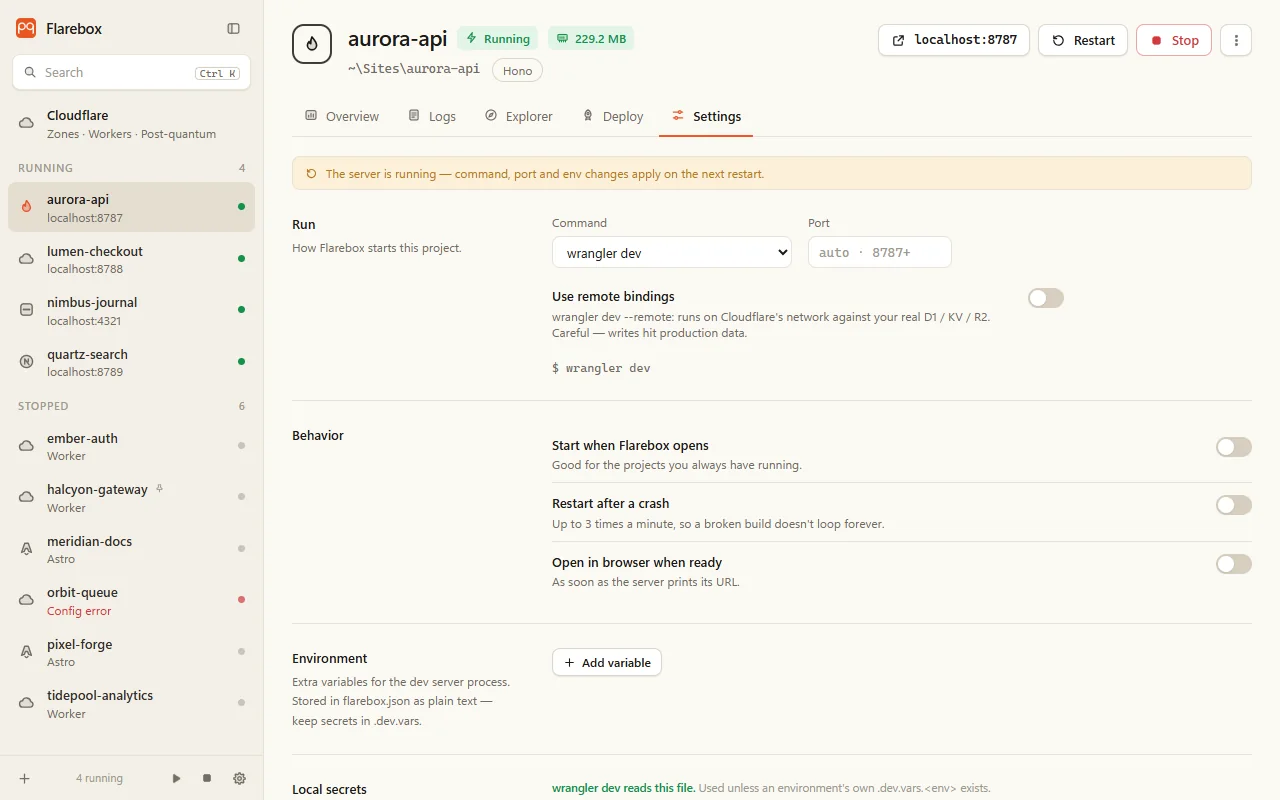
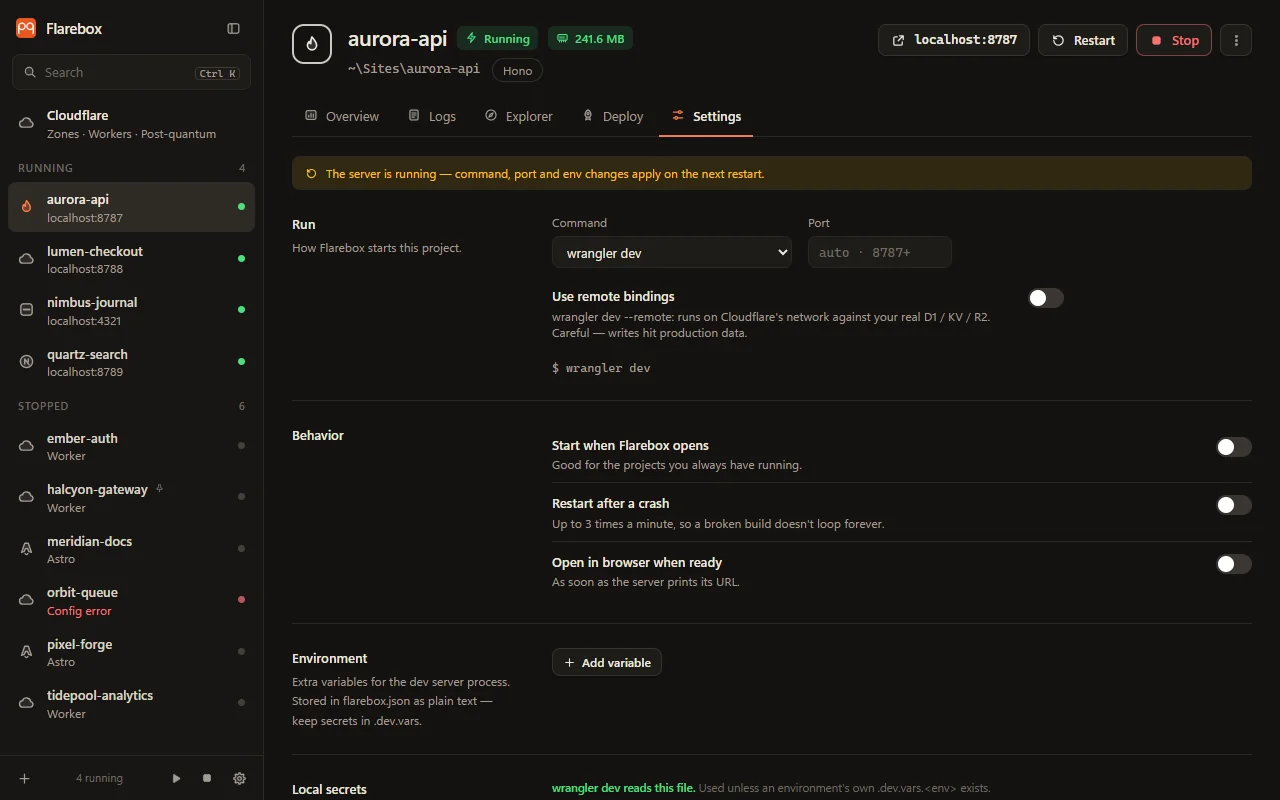
Changes to the command, port or environment apply on the next start. Flarebox says so while the server is running.
No orphaned processes
Section titled “No orphaned processes”Every dev server runs inside a Windows Job Object. Stopping it, quitting Flarebox, or even a crash of Flarebox itself takes the whole node → workerd tree down with it. No workerd is left holding a port.
If an earlier crash (of another tool, say) left workerd processes behind, Flarebox finds them at start: “N leftover workerd processes from an earlier crash are still running”. Stop them only touches workerd processes whose parent has gone.
When the port is taken
Section titled “When the port is taken”If the port is in use, Flarebox names the process holding it: “Port 8787 is already in use. It’s held by name (PID n)”. You can stop that, or click Use port n to start on the next free one.
Notifications and the tray
Section titled “Notifications and the tray”- A crash raises a Windows notification (“name crashed”) unless you turn that off in Settings.
- The tray menu lists every running project with Open in browser and Stop, plus Stop all and Quit Flarebox.
- Launch at Windows login starts Flarebox quietly in the tray, then auto-starts the projects you’ve marked.
The project menu
Section titled “The project menu”The ⋯ menu on a project: Open in browser, Open folder, Open in VS Code, Terminal here, Open wrangler config, Generate types (wrangler types), Copy path, Save logs…, Clear logs, Hide project.
wrangler updates
Section titled “wrangler updates”When the dev server’s output says a newer wrangler is available, the Overview’s Wrangler line shows it with the install command for the project’s package manager, e.g. npm i -D wrangler@latest.